What account linking is and when to use it.
Who this is for
This tutorial is for anyone who wants to know more about account linking.
What is account linking?
- Account linking is a feature that allows an account to be linked to another account. This is useful for parents who want to link their child's account to their own account.
- Account linking is
not necessaryto use the software properly. - Account linking between family members is not set up automatically. You need to start the linking request and get approval from the account owner.
- For security and privacy reasons, an account can currently be linked only
once. If you want an account to be linked to another account, you need to unlink it from the previous account first.
Associations have tools to check and adjust account linking. Please contact your association if you need help.
Where to check and manage account linking
- You can check and manage account linking on the account linking page.
- You can request a new account link by clicking the "Link account" button on the account linking page.
- You can unlink an account by clicking the "Unlink" button on the account linking page.
Please note that an account linking request has to be approved by the account owner before the linking is successful.
Please note that your children's accounts are NOT linked to your account by default or automatically. You need to start the linking request and wait for approval.
What is account linking for?
- You can see the linked account in the mobile app.
- You can switch to the linked account in the mobile app. After switching, you will act as that linked account and have the same permissions as that account.
- You can make registrations for a linked account.
- You can receive notifications for the linked account. When the linked account has a notification, you will receive a notification too.
How to view and switch to a linked account in the mobile app
In the mobile app, click the photo icon in the top right corner of the dashboard screen to view the profile of the currently logged-in account and any linked accounts.
Please refer to this screenshot for an example:
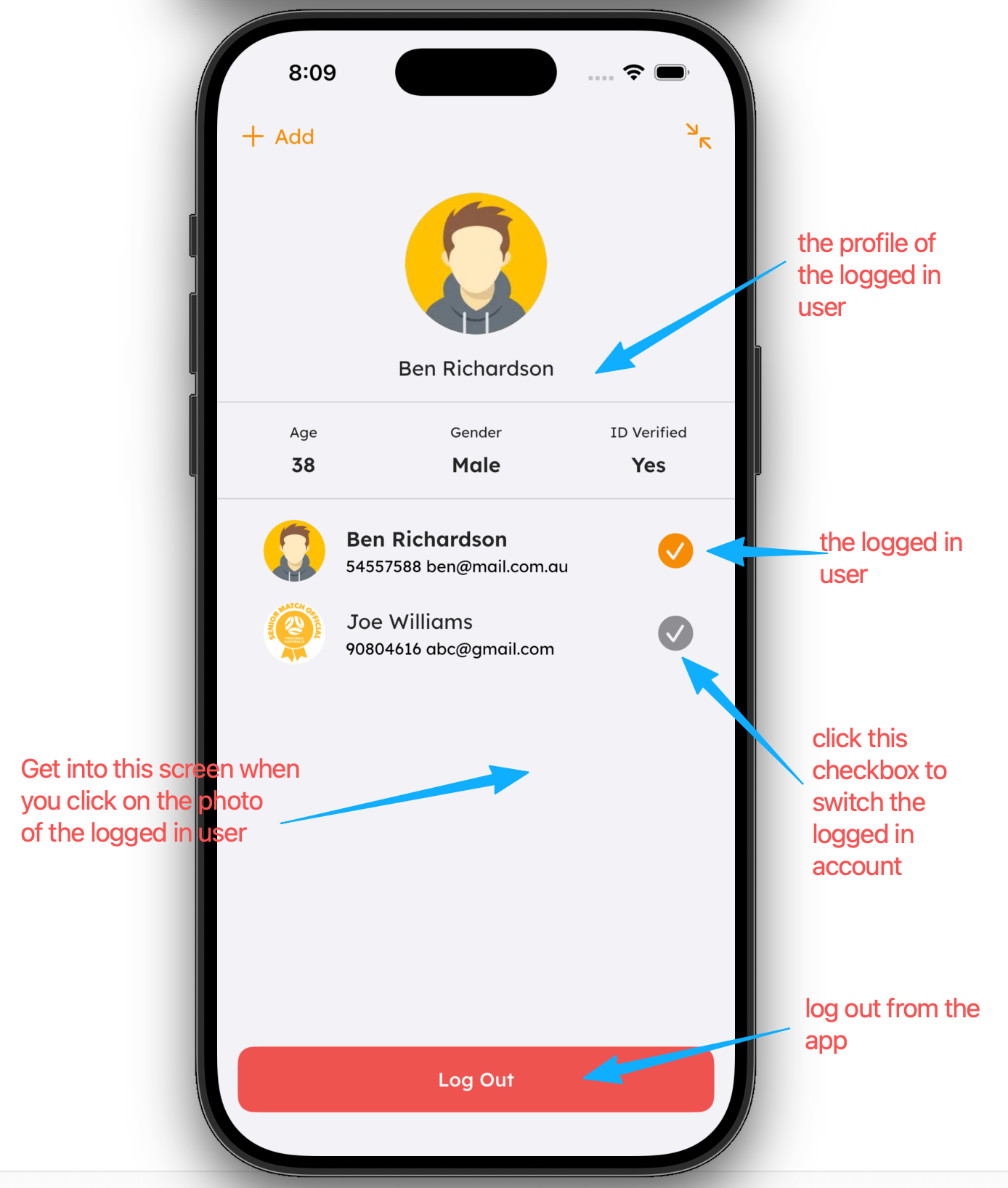
- You can view the linked account in the mobile app by clicking the "Switch account" button on the top right corner of the dashboard screen.
- You can switch to the linked account by clicking the "Switch" button on the linked account item.